> ## Documentation Index
> Fetch the complete documentation index at: https://fillout-005a867b-dependabot-npm-and-yarn-socket-io-parser-4.mintlify.site/llms.txt
> Use this file to discover all available pages before exploring further.

# Use skip logic for questions with multiple answers

> Create dynamic forms that branch to different sections depending on previous answers using logic.

export const SupportBanner = () => {
  const titleId = React.useId();
  return <div className="support-banner" role="region" aria-labelledby={titleId}>
      <span className="support-banner__ring support-banner__ring--outer" aria-hidden="true" />
      <span className="support-banner__ring support-banner__ring--middle" aria-hidden="true" />
      <span className="support-banner__ring support-banner__ring--inner" aria-hidden="true" />
      <span className="support-banner__ring support-banner__ring--center" aria-hidden="true" />

      <div className="support-banner__content">
        <div className="support-banner__title" id={titleId} role="heading" aria-level="2">Still have questions?</div>

        <div className="support-banner__copy">
          <span className="support-banner__line">Our team is happy to help. Start a live chat using the</span>
          <span className="support-banner__line">
            chat bubble <span className="support-banner__chat-icon" aria-hidden="true" /> in the bottom right, or email us at
          </span>
          <span className="support-banner__line">
            <a href="mailto:support@fillout.com">support{'@'}fillout.com</a>
          </span>
        </div>

        <a className="support-banner__cta" href="mailto:support@fillout.com">Contact us</a>
      </div>
    </div>;
};

## How to set up skip logic

<Steps>
  <Step title="Navigate to Logic">
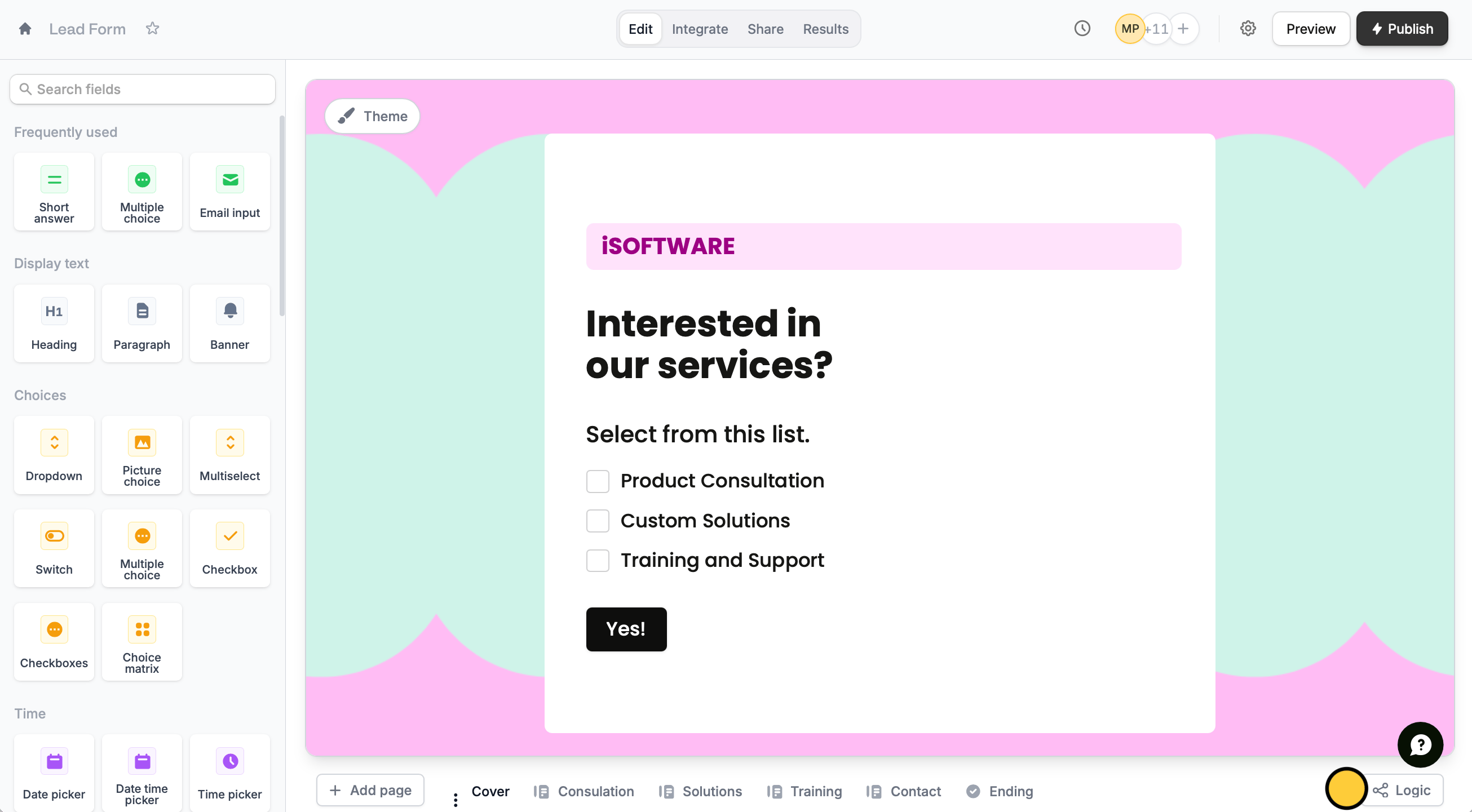
    On your form builder, go to `Logic`. For example, let’s ask respondents which specific services they would like to avail.
    <img src="https://mintcdn.com/fillout-005a867b-dependabot-npm-and-yarn-socket-io-parser-4/KKmYfTaGUE6kYImk/images/Screenshot2025-10-20at3.38.35PM.png?fit=max&auto=format&n=KKmYfTaGUE6kYImk&q=85&s=94e40cb55c6bc51224f4f057504ec8a1" alt="Screenshot 2025-10-20 at 3.38.35 PM.png" width="2611" height="1441" data-path="images/Screenshot2025-10-20at3.38.35PM.png" />
  </Step>

  <Step title="Create branches">
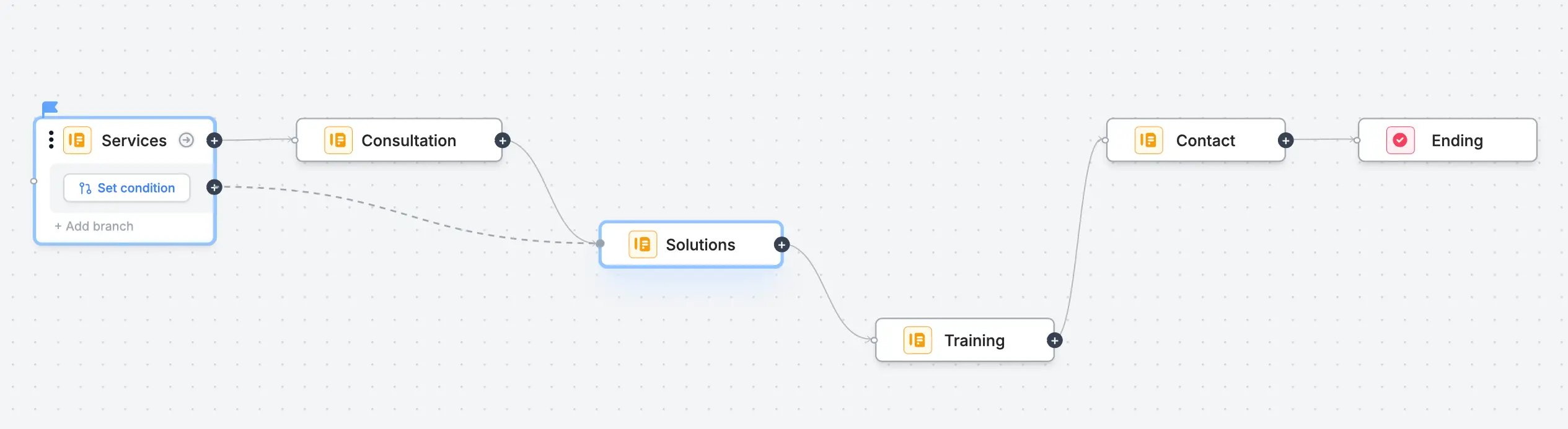
    By default, each page connects to a single page, until the **Ending page**. We want to create a dynamic form that will only show pages relevant to previous answers.

    First, drag and drop the <Icon icon="circle-plus" iconType="solid" /> connector of the page containing the question to the connector of the relevant page.
    <img src="https://mintcdn.com/fillout-005a867b-dependabot-npm-and-yarn-socket-io-parser-4/zC0LQIX9o5dnEI68/images/guides/image-26.png?fit=max&auto=format&n=zC0LQIX9o5dnEI68&q=85&s=c8d09a52d490c7efbf6f71db4fe2b0fb" alt="PDF Viewer" width="2530" height="693" data-path="images/guides/image-26.png" />
  </Step>

  <Step title="Set conditions">
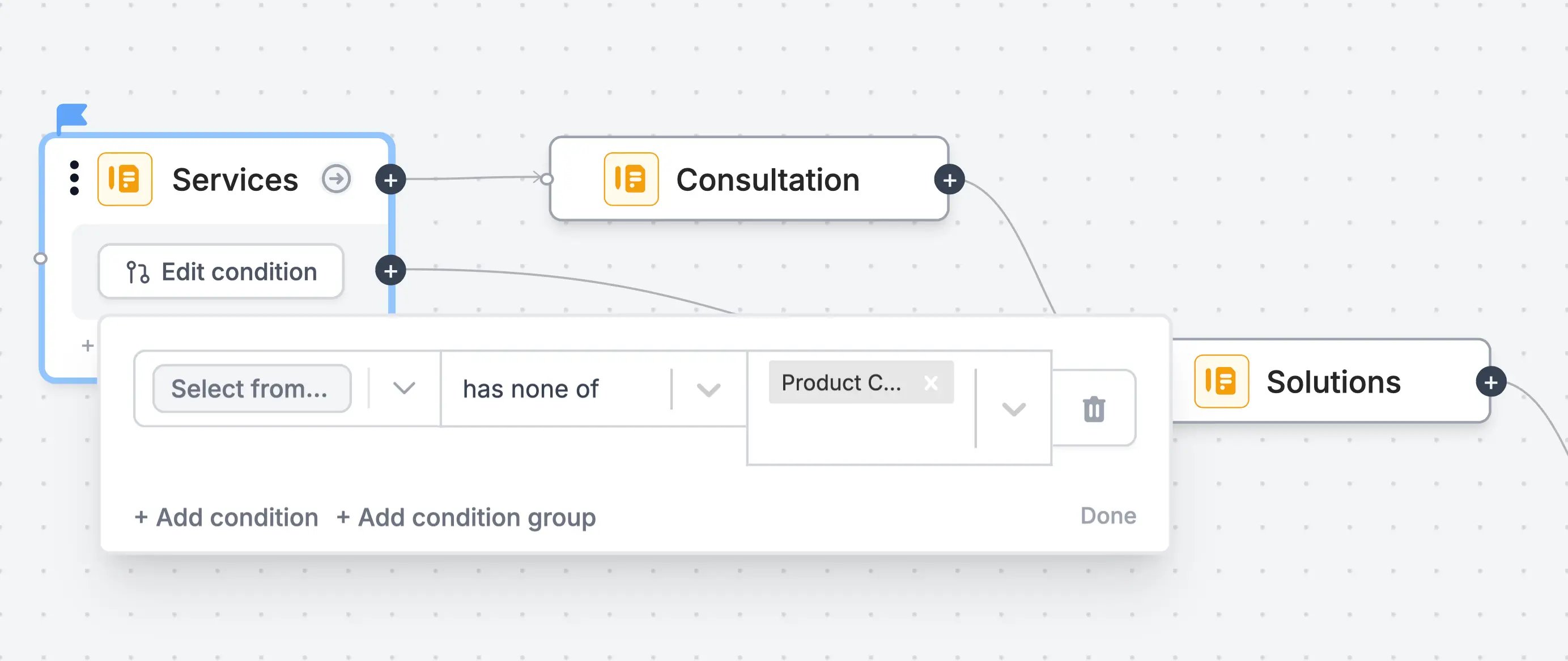
    Say, the respondent selects "Solutions" and "Training" only. In this case, we’ll have them skip the page(/s) that come before it, "Consultation".
    <img src="https://mintcdn.com/fillout-005a867b-dependabot-npm-and-yarn-socket-io-parser-4/zC0LQIX9o5dnEI68/images/guides/image-27.png?fit=max&auto=format&n=zC0LQIX9o5dnEI68&q=85&s=bc44ab4410675c0189e13dbf1da496c6" alt="PDF Viewer" width="2767" height="1167" data-path="images/guides/image-27.png" />

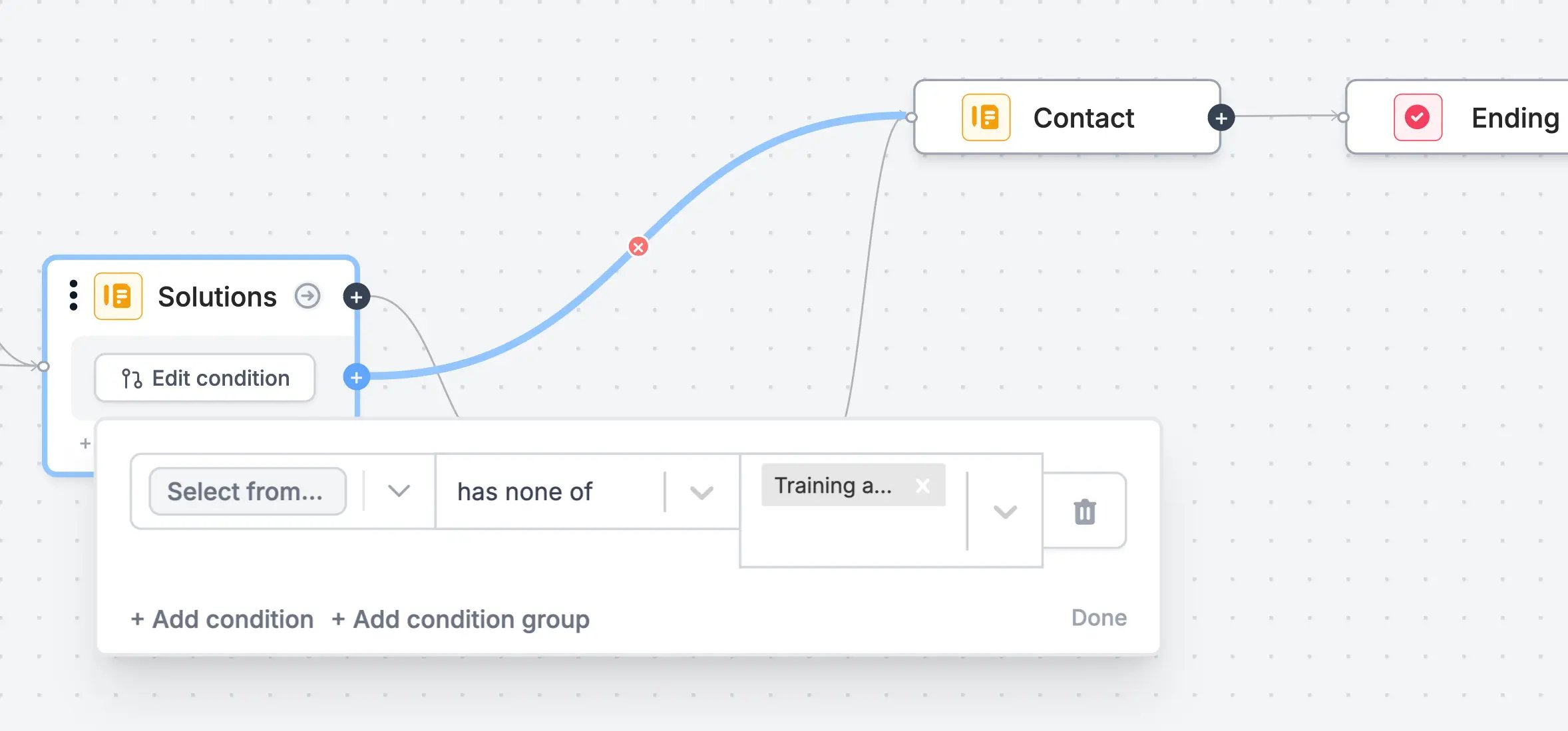
    Now, let’s make a path for when they select only one option like "Solutions". We’ll add a branch to skip the page(/s) after it, "Training".
    <img src="https://mintcdn.com/fillout-005a867b-dependabot-npm-and-yarn-socket-io-parser-4/zC0LQIX9o5dnEI68/images/guides/image-28.png?fit=max&auto=format&n=zC0LQIX9o5dnEI68&q=85&s=c878d0985f6a6e1c8977f4855e3df266" alt="PDF Viewer" width="2356" height="1099" data-path="images/guides/image-28.png" />

    For the remaining options, add branches and repeat the same process. Configure the conditions as you see fit.
  </Step>
</Steps>

## Relevant articles

<CardGroup cols={3}>
  <Card title="Page logic" icon="diagram-project" iconType="regular" color="#FFC738" href="/page-logic">
    Hide or show pages or custom endings based on respondent input.
  </Card>

  <Card title="Condition groups" icon="table-tree" iconType="regular" color="#FFC738" href="/condition-logic-groups">
    Show or hide fields based on multiple conditions at once.
  </Card>
</CardGroup>

<SupportBanner />
