> ## Documentation Index
> Fetch the complete documentation index at: https://fillout-005a867b-dependabot-npm-and-yarn-socket-io-parser-4.mintlify.site/llms.txt
> Use this file to discover all available pages before exploring further.

# Send an email reminder to invitees

> Send automated reminders to your meeting guests via email. Easily input scheduling details that adapt to respondent input.

export const SupportBanner = () => {
  const titleId = React.useId();
  return <div className="support-banner" role="region" aria-labelledby={titleId}>
      <span className="support-banner__ring support-banner__ring--outer" aria-hidden="true" />
      <span className="support-banner__ring support-banner__ring--middle" aria-hidden="true" />
      <span className="support-banner__ring support-banner__ring--inner" aria-hidden="true" />
      <span className="support-banner__ring support-banner__ring--center" aria-hidden="true" />

      <div className="support-banner__content">
        <div className="support-banner__title" id={titleId} role="heading" aria-level="2">Still have questions?</div>

        <div className="support-banner__copy">
          <span className="support-banner__line">Our team is happy to help. Start a live chat using the</span>
          <span className="support-banner__line">
            chat bubble <span className="support-banner__chat-icon" aria-hidden="true" /> in the bottom right, or email us at
          </span>
          <span className="support-banner__line">
            <a href="mailto:support@fillout.com">support{'@'}fillout.com</a>
          </span>
        </div>

        <a className="support-banner__cta" href="mailto:support@fillout.com">Contact us</a>
      </div>
    </div>;
};

## How to set up

<Steps>
  <Step title="Create an event email reminder">
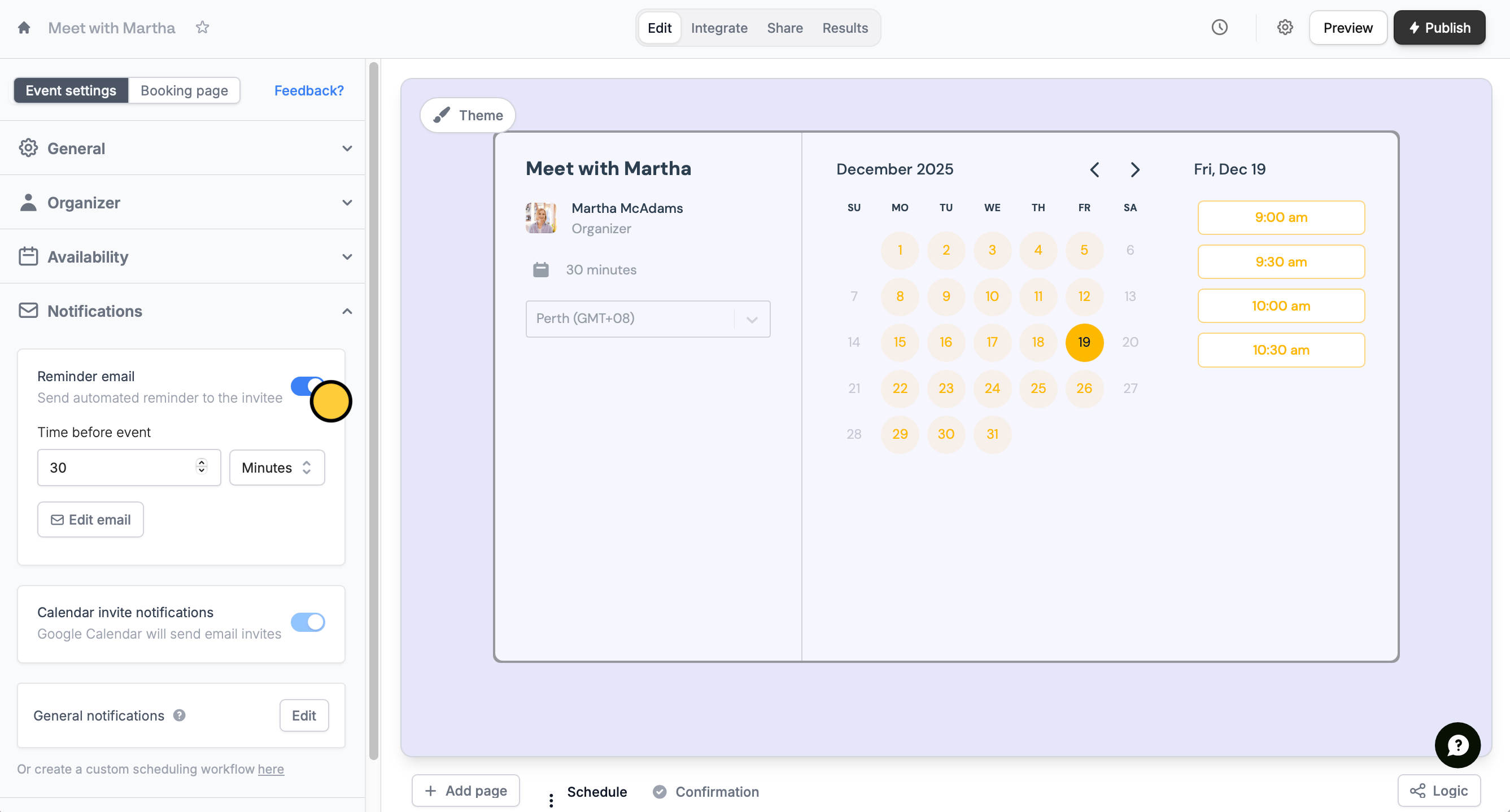
    On the left-hand panel, scroll down to **Notifications** and toggle the `Reminder email` switch. Enter when you want the reminder to be sent.

    Alternatively, you can use our `Event email reminder to invitees` [workflow template](https://www.fillout.com/help/scheduling-workflows#event-email-reminder-to-invitees).
    <img src="https://mintcdn.com/fillout-005a867b-dependabot-npm-and-yarn-socket-io-parser-4/KKmYfTaGUE6kYImk/images/Screenshot2025-10-28at6.14.19PM.png?fit=max&auto=format&n=KKmYfTaGUE6kYImk&q=85&s=5b519b4fa47285079e1989733394c931" alt="Screenshot 2025-10-28 at 6.14.19 PM.png" width="2674" height="1438" data-path="images/Screenshot2025-10-28at6.14.19PM.png" />

    `Edit email` to format the contents and theme of your email.
  </Step>

  <Step title="Style your email">
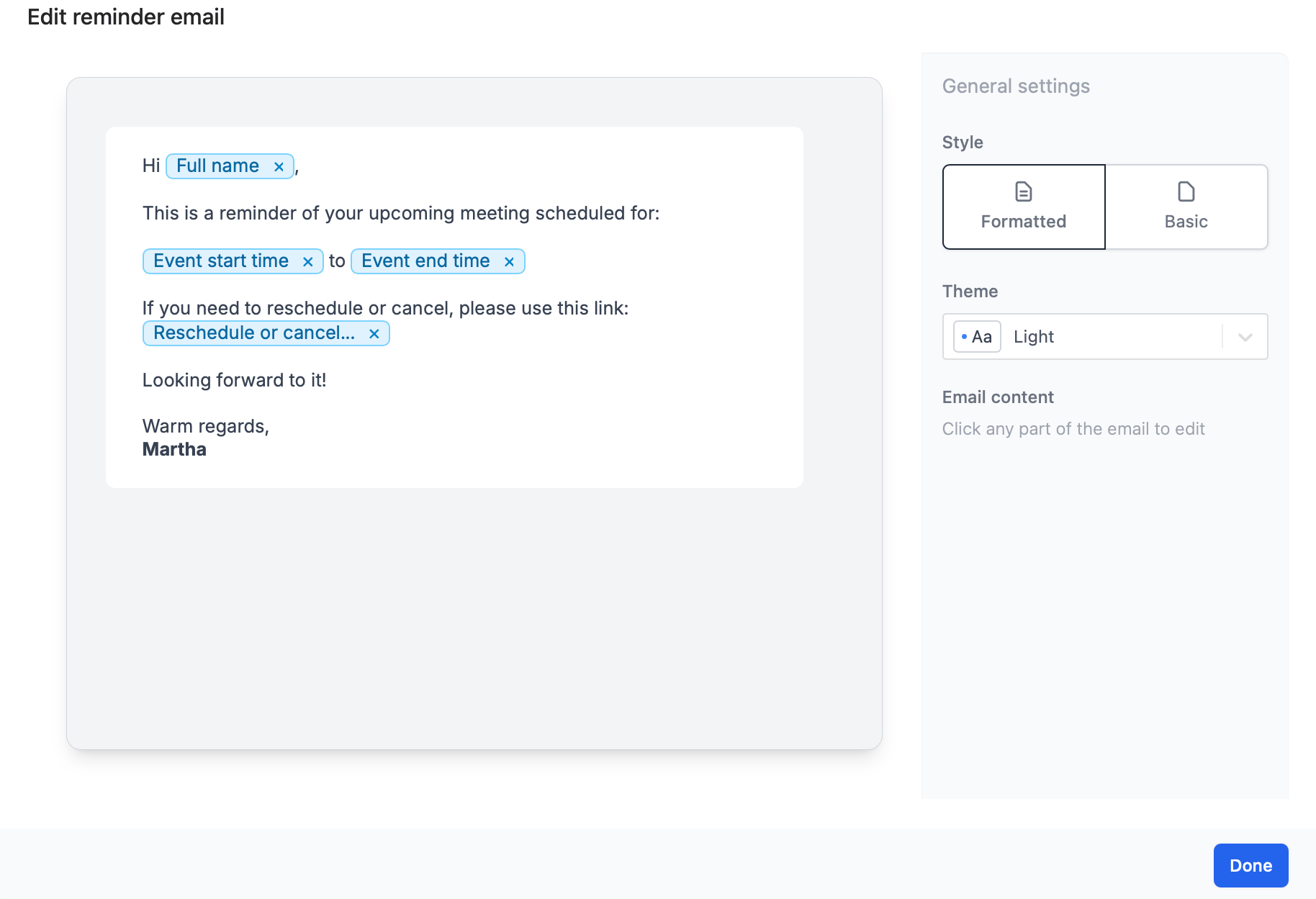
    You can opt to use a different **Theme** or **Style**. See more ways to customize the look [here](https://www.fillout.com/help/custom-emails#style-your-email).
    <img src="https://mintcdn.com/fillout-005a867b-dependabot-npm-and-yarn-socket-io-parser-4/KKmYfTaGUE6kYImk/images/Screenshot2025-10-28at6.16.54PM.png?fit=max&auto=format&n=KKmYfTaGUE6kYImk&q=85&s=8e323abb24301f89de24c37be6cd8864" alt="Screenshot 2025-10-28 at 6.16.54 PM.png" width="1828" height="1249" data-path="images/Screenshot2025-10-28at6.16.54PM.png" />
  </Step>

  <Step title="Reference fields (Optional)">
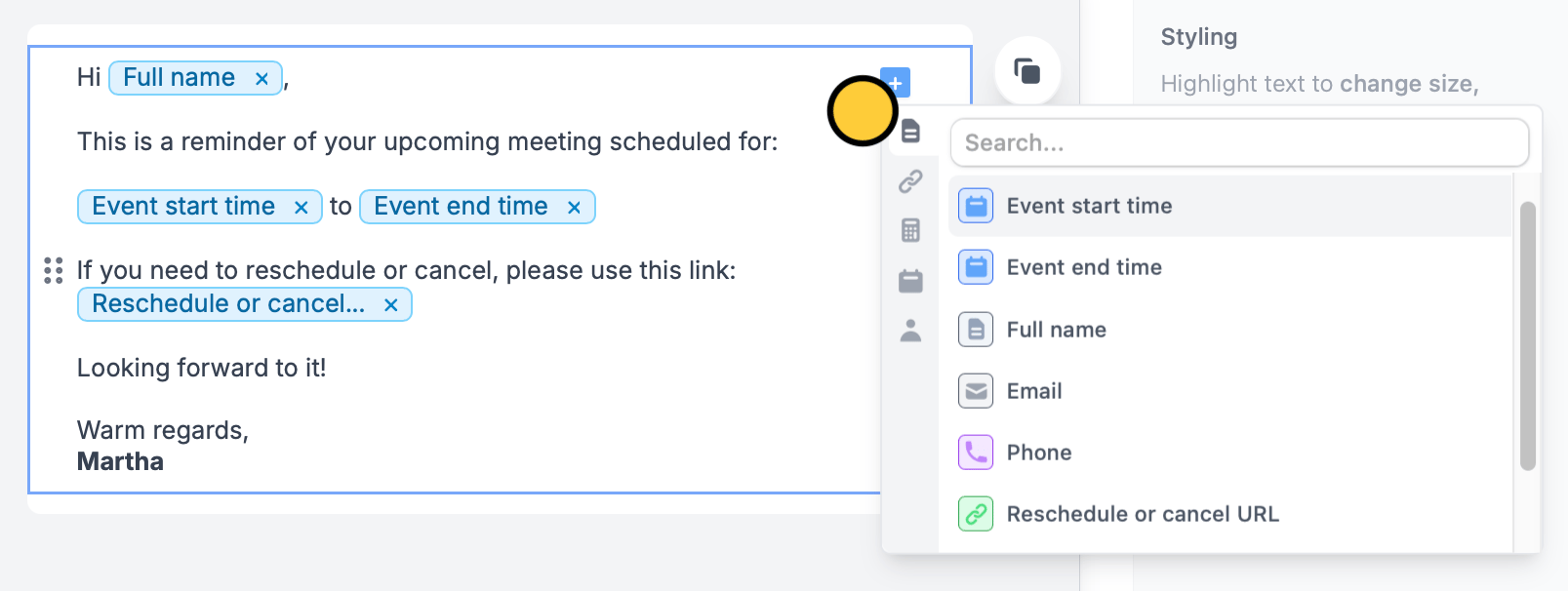
    You can reference scheduling details or other form answers by typing **@** or clicking <Icon icon="square-plus" iconType="solid" />, and choosing the specific field or question.
    <img src="https://mintcdn.com/fillout-005a867b-dependabot-npm-and-yarn-socket-io-parser-4/KKmYfTaGUE6kYImk/images/Screenshot2025-10-28at6.15.45PM.png?fit=max&auto=format&n=KKmYfTaGUE6kYImk&q=85&s=f3a98c79d84b319ab7b2ef1f43b75725" alt="Screenshot 2025-10-28 at 6.15.45 PM.png" title="Screenshot 2025-10-28 at 6.15.45 PM.png" style={{ width:"76%" }} width="1607" height="606" data-path="images/Screenshot2025-10-28at6.15.45PM.png" />
  </Step>
</Steps>

## Related articles

<CardGroup cols={3}>
  <Card title="Scheduling actions" icon="circle-calendar" iconType="regular" color="#FFC738" href="/scheduling-workflows">
    Send reminders to yourself and other hosts.
  </Card>

  <Card title="Custom emails" icon="envelope-open-text" iconType="regular" color="#FFC738" href="/custom-emails">
    Automate sending, pipe previous answers, and style your email.
  </Card>

  <Card title="Respondent emails" icon="bell" iconType="regular" color="#FFC738" href="/respondent-emails">
    Email respondents a copy of their answers that can be edited.
  </Card>
</CardGroup>

<SupportBanner />
